
Introduction
In this post, I explain the different steps to generate a document using a Word template and the Office Add-ins for Dynamics AX 2012.
Publish data sources
You need the define which data sources from Dynamics AX, users are allowed to use in Office.
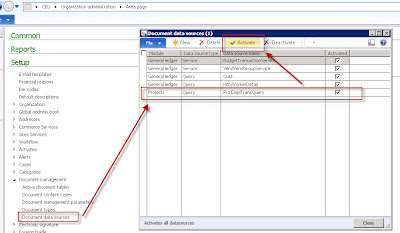
- Go to Organization administration > Setup > Document management > Document data sources.
- Add the data source you want to use.
- Activate the data source by using the Activate button.
Connecting to the AOS
Next, you need to define where to fetch the data from in Word, it is from which AOS. If there are multiple AOS instances, like for example a test, development, … environment, follow these steps:
- Open Word, go to the Dynamics AX tab and click the Connection button. Open the Advanced section and fill out the Server and Port.
- Choose the Legal Entity from which data should be retrieved.
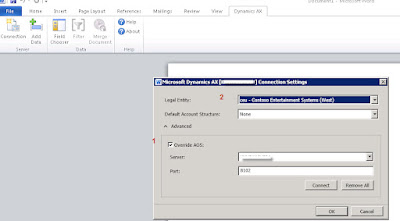
If you don’t know the Server and Port name, just find the configuration file you are using to start up Dynamics AX. Open it with Notepad and look for following information:
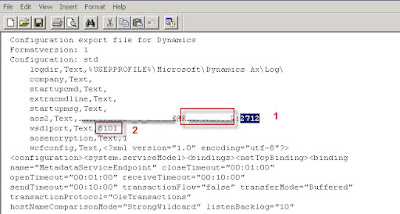
Remark 1= after the @ sign, you can find the AOS instance name. Remark 2 = the Port, so don’t fill out the Port you find after the : sign on the aos2 lign.
Design the Word document
In this example I’ll add a table to my Word document for repeating values of my ProjEmplTransQuery data source, to show hour transactions for a Project.
Next, go to the Dynamics AX tab and choose Add Data. Select the ProjEmplTransQuery data source and hit OK.
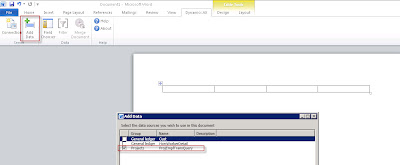
To the right, you’ll notice the fields of the chosen data source. As you can notice, if you add related tables to your data source, you can pick fields from multiple tables. Drag and drop the fields you want in your report in the columns of the Word table. If you drop them in the second row, automatically a header row will be created.
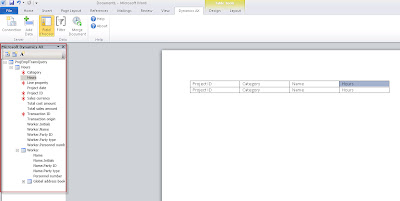
You can add whatever Word formatting style you like to your table, to make it look nice.
Maybe it would be great to add a filter to the retrieved data, for example only for a specific project number:
- Go to the Dynamics AX tab.
- Choose Filter.
- Add the appropriate filters.
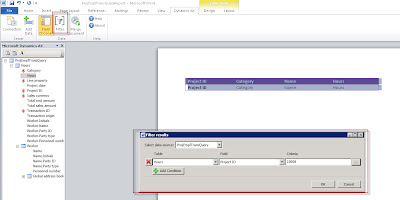
Next, save the Word document.
Generating the report
- Open the saved Word document.
- Go to the Dynamics AX tab.
- Choose Merge Document.
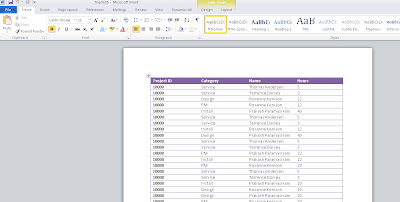
Adding additional data
Another data source could be connected to the same Word document. In my example below, I’ve added the ProjTable data source. I use this data source to put some fields on my report, so no repeating table. To make sure, the fields are filtered the same way my rows in my table are (for the same project), I should add the same filter to my second data source:
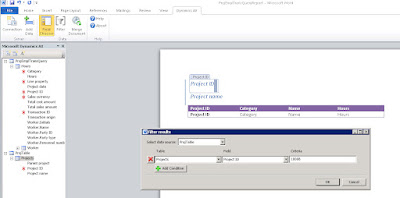
Rerun the report:
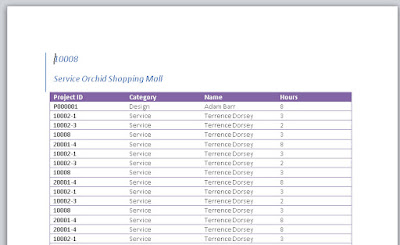
A remark: apparently, fields added a such to the Header or Footer of a Word document aren’t replaced by the Merge action. Just a pity, but apparently it ain’t working…
Add the Word template to Dynamics AX
- Remove the Filter from the Word document and save it.
- Upload your Word document to a SharePoint library.
- Go to Organization administration > Setup > Document management > Document types. Create a new Type and choose as Class Template library. Fill out the url of the SharePoint library to which you’ve uploaded the Word template in the field Document library. Activate it.
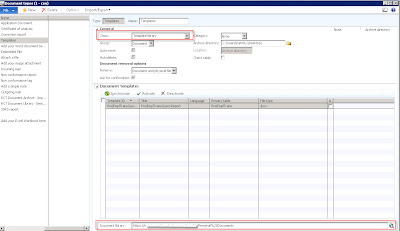
Once activated, each form containing a reference to the Primary table, will be able to generate the document. This is a problem as our Primary table currently is the ProjEmplTrans table. However, the ProjTable was included in our document aswell, so I would like to make this the Primary table. To do so, open the Word document, right click the ProjTable node, choose Properties and check the Use as primary query checkbox.
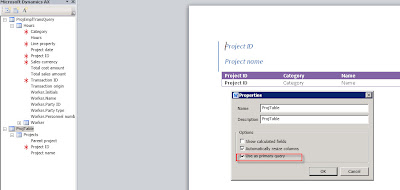
Remove the ProjEmplTransQuery anyway: it won’t filter on Project-Id as it ain’t the primary query.
Re-upload your Word document to the SharePoint library and Synchronize the Document Type in AX with the library. Now the Primary table is ProjTable for this Word document.
Add the generate from template buttons
To be able to generate the document, some buttons should be added. The CustTable form has already the necessary buttons, so it is easiest to just copy it from there and paste it to your target form, in this example the ProjTable form:
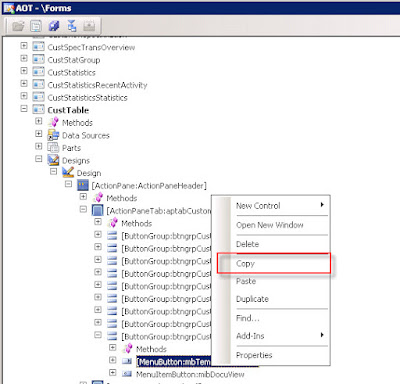
Some methods should be added on your target form, being classDeclaration:
// classDeclaration
class FormRun extends ObjectRun
{
    …
    // BGN Office Add-ins

    boolean isDocuActionTemplate;
    // END Office Add-ins
}
The init method:
void init()
{
    …
    super()
    // BGN Office Add-ins
    isDocuActionTemplate =
        DocuActionForTemplate::createTemplateOnMenuButton(
                    mbTemplatesButton, projTable.TableId);
    …
    // END Office Add-ins

}
The run method:
public void run()
{
    …
    docuActionTemplateUndefined.visible(
                 !isDocuActionTemplate);
}
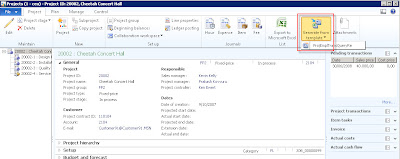
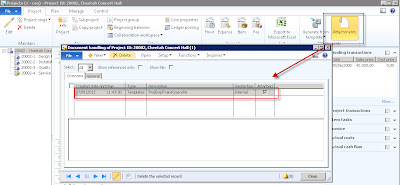
Now we can generate the document with as Filter the Project Id from the record selected in the Form. The document is generated and automatically attached to the record in the form:
 View my profile


When i drop a field or i use the command insert as value, i don't view the field in the word document. I only can use the function insert as label. In many cases i receive the message "File contains corrupted data". Have you an idea?
Followed all the steps but when generating the document from template I got the error:
Exception has been thrown by the target of an invocation.
I did it for CustTable form and document data source is CustTable as well. Any ideas?
Does anyone konow how to add Totals to a Purchase Order created as a Word Template?
Hi,
Is there anyone have a Sample Templates for All Customer or others...
Thanks and Regards,
Ariston
My suggestion is, it had better if you could add a few lines about what document templates are and what need it addresses? This could have provided a higher overview before going in details, so that reader get synched with your material or demonstration you are going to present.
While reading this post, i was not aware what problem document template addresses and so i could not keep focus on the steps provided in post.
Does it support custom services and display methods? I tried creating a query. That too does not work on generate from templates. Display methods works fine in attachment.
HI Anyone tell, How to activate the Genarate from template in Enterprise portal (EP).
Hello Everyone, I'v been using the MS dynamics 2012 office word Add-on to create a document template, i'm in need to get data from a display method, but it doesn't work, can you give me any idea of how to use display method in the query to use in the document data source ?
A great tutorial where one can get a instant knowledge from.Thanks so much for these wonderful sharing.
Images Retouch is a professional Clipping Path Service Company and provides Clipping Path Services, Images Retouching Services and more for additional details http://www.imagesretouch.com
Your article is great, especially to get you started with Word templates. However, I found many difficulties while working with Word Add-In. The main problem as far as I am concerned was that whatever I changed in my data source (e.g. if I added a new field or a display method to the query or its underlying table) these changes could not be seen in the Word template until I removed the data source from the template and start the whole templating process again (!?). In other words, the refresh of data sources don't work at all. I have to say that we had a lot of Word documents to develop since we have clients in public sector and this was our greatest pain.
Also, there were other problems such as creating nested tables/lists so we have to use display methods to show nested lines. Formatting dates and amounts didn't work, we could not put a company logo (an image) in the document header neither we could put any merge field in headers/footers at all. And because we needed to create very complex documents (not just letters with fields), data source queries was terribly complicated to write.
But recently we have started using this AX Add-On (http://ax.docentric.com/) that made Word templates a lot easier to develop. First of all, we were able to use data providers instead of queries. The tool has much more powerful Add-In for Word that removes all design limitations mentioned above: http://ax.docentric.com/templating-capabilities/.
It turned out that this tool can completely replace SSRS reports as well. We at least halved our development time, and not to mention how much happiness has increased among developers – previously developers would avoid working with Word templates or SSRS reports at any cost…
Preposition phrase finder website is a cool and handy tool that identifies preposition related errors in your text work. This tool has been developed to improve and simplify the process of checking and troubleshooting. The tool is easy to use, convenient and accessible to absolutely everyone.
Today, there are many tools that help improve the quality of your text work. And I will tell you about one of them. grammar check commas tool will help you to use and punctuate correctly. This tool is easy to use and after scanning you will be able to see problem areas and fix them
If you have been working in a field for a long time that requires serious concentration and spending time working with large volumes of text, then you will definitely need a service like a free online comma corrector in the text that will easily check and edit for you, saving you a lot of time and effort . You can find such a miracle service by visiting the comma placement checker website. It's completely free and definitely worth your attention!
Post a Comment