My 2p about ERP Solutions, Information Worker Solutions and other software products (mainly Microsoft Dynamics AX and Microsoft SharePoint).

31 October 2008

Links List October 2008

I decided to share all my interesting reads and resources month by month with my blog readers. You can find these posts by searching on the label Links. I'll try to order the resources in logical categories. If you would like to see some interesting stuff added in the next month, don't hesitate to post a comment.

So this is my first Links post for October 2008.

SharePoint - Design and Customization


SharePoint - Business Intelligence


  • Plan external data connections for Excel Services: To configure Microsoft Office SharePoint Server 2007 to enable workbooks loaded on Excel Services in Microsoft Office SharePoint Server 2007 to successfully refresh external data, you need to understand the relationships and dependencies between Office SharePoint Server 2007 and Excel Services. The guidance provided in this article helps you resolve the Data Refresh Failed error message.


SharePoint - Tips and Tricks


Blogging - Blog Widgets


  • Lijit: blog widget which allows publishers (primarily bloggers) to create their own search engine.


Continue reading......

by Patrik Luca 0 comments

25 October 2008

Upgrade Windows evaluation copy

Problem Description: VHD image over end of Windows evaluation period


Microsoft offers a great set of evaluation VHD images which you can see here (the list changes from time to time). It is great for evaluation purposes, for creating a training or testing environment or as starting point to give a demo. The only problem is that these VHD images are installed with an evaluation copy of Windows: as such they have a limited time frame: once this time frame is ended, the operating system reboots every hour... If you have created a demo VHD image based on such an evaluation image, you run into troubles once the evaluation period of the operating system has ended.
I created a demo environment based on the Office SharePoint Server 2007 VHD with lots of addings by myself. But unfortunately the evaluation period of the operating system was ended, so my system rebooted every hour. Which is really embarrassing during demos, moreover all your web server caching is lost, so your demo goes really slow after the reboot.

Solution: Upgrade Windows Server


To fix the problem, upgrade Windows Server: you'll be prompted to enter your product key. After the upgrade, you'll have a valid operating system version and not anymore an evaluation version. Only thing remaining will be to activate your newly installed Windows version

To upgrade follow exactly these steps:

  • Download the Windows CDs from Technet.

  • Start up your VHD image and press the CD option. Choose Capture ISO Image.... Select your downloaded Windows CD.

  • Reboot your VHD image, once you get the press any key to boot from CD... message, press a key.

  • Once you are up to the install/repair in the recovery console, choose to install.

  • Press F8: the installer will search for an already installed version of Windows.

  • Once it has found the evaluation copy of Windows, choose to repair this installation.

  • You'll be asked to enter your product key.

  • Installation will continue and it will reboot your VHD image.


During activation of your Windows version, you may receive following error message: Microsoft Out of Box experience has encountered a problem and needs to close. We are sorry for the inconvenience. This can be caused by a conflict between your current Windows installation and Internet Explorer 7.
To fix this, follow these steps:

  • Open the C:\windows\ie7\spuninst folder. (Make sure hidden files are shown)

  • Double click spuninst.exe which will start up the wizard to uninstall Internet Explorer 7.

  • Reboot your VHD image: you'll be able to activate your Windows installation now.


Continue reading......

by Patrik Luca 13 comments

13 October 2008

Data Refresh Failed

Problem Description: Data Refresh Failed


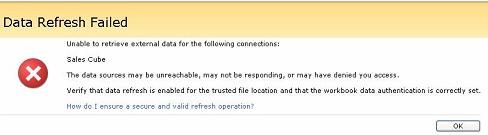
You have configured Microsoft Office SharePoint Server 2007 to enable workbooks load in Excel Services. You have stored your data connection in a trusted data connection library and your Excel 2007 workbook in a trusted file location. You open the Excel 2007 workbook and you apply a filter or you choose to Refresh All Connections. Following error message is appearing:
Unable to retrieve external data for the following connections:
Connection_Name
The data sources may be unreachable, may not be responding, or may have denied you access.
Verify that data refresh is enabled for the trusted file location and that the workbook data authentication is correctly set.

Refreshing all connections or filtering with an administrator account works without problem.


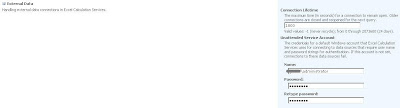
Solution: Configure the Unattented Service Account


Go to SharePoint Central Administration and go to your Shared Service Provider. In the section Excel Services Settings, choose Edit Excel Services Settings. In the External Data section configure the Unattended Service Account: it should be an account with administrator rights. Execute an iisreset. Your problem should be fixed.


Continue reading......

by Patrik Luca 6 comments

05 October 2008

Customize SharePoint list form rendering in new, edit and display mode

Business requirement: Hide list fields upon creation / modification of a SharePoint list item with the SharePoint GUI


In a previous blogpost Hide list fields upon creation of a SharePoint list item, I talked about how to hide a SharePoint list field upon creation of a list item and to show it upon modification of that same list item.
Unfortunately, this is something which cannot be achieved by using merely the out-of-the-box administration tools of SharePoint, but the SharePoint Tips Utility Pack could help you out. This great tool has some disadvantages:
  • You can only run it on the SharePoint server itself.
  • If you are a SharePoint implementator, you can set the properties of each field with this tool. Unfortunately, if power users of the SharePoint environment afterwards want to change anything to a field, they are not able to do this anymore (whereas they are able to change views,add content types or add columns on a SharePoint list you have set up for them by going to the appropriate settings forms).

Solution: use the SPListDisplaySetting feature


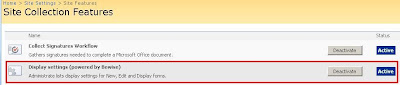
Laurent Cotton created a SharePoint feature: SPListDisplaySetting, also available on CodePlex. After installing this SharePoint feature (it comes with a nice install wizard), activate the feature on your site collection.


After activation of the SPListDisplaySetting feature for the site collection, each SharePoint list will have automatically an extra topic when you go to the List Settings: Display settings (powered by Bewise) (in the General Settings section).


Clicking the Display settings will give you a form on which you can set the display properties for each field on the new item form (NewForm.aspx), the edit item form (EditForm.aspx) and the display item form (DispForm.aspx).
Following options are available for the display property on each form:

  • Always: the field or column will always be visible on that particular form.
  • Never: the field or column won't be visible on that particular form: you can use this to hide list fields upon creation of a new SharePoint list item as alternative solution to the one described in my blogpost Hide list fields upon creation of a SharePoint list item.
  • Where: with this option you can make the visibility of the field or column depending on a condition. This adds even more functionality than what can be achieved with the SharePoint Tips Utility Pack. The conditions available are currently limited to verifying if the currently logged in user is belonging or not to a certain SharePoint group.


After setting the display properties for each SharePoint field of your list, execute an iisreset: you 'll notice right away the changes in your NewForm.aspx, EditForm.aspx or DispForm.aspx.


Continue reading......

by Patrik Luca 11 comments

03 October 2008

View members of a SharePoint group

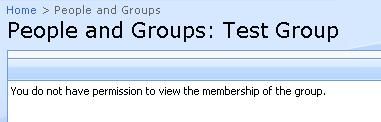
Problem description: You do not have permission to view the membership of the group.


When clicking on a SharePoint group you don't belong to, you get the message You do not have permission to view the membership of the group. As such, you cannot see the members of that SharePoint group.


Solution: Change property Who can view the membership of the group?


Go to the Group Setting of the SharePoint group and set the property Who can view the membership of the group? to Everyone.


Continue reading......

by Patrik Luca 5 comments

25 September 2008

How to trigger a workflow based on a non-empty Comments field?

At an installation where I created a helpdesk functionality based on the Help Desk template, one of the Application Templates for Windows SharePoint Services 3.0, I was asked to create a workflow which sends out an email automatically when a comments is added to a service request. The email may not be sent out if the comments added was empty.
I thought this wouldn't cause much of a problem and started creating the workflow with Microsoft Office SharePoint Designer 2007. The condition checked to evaluate if an email should be sent out was If Comments is not empty.


I created a service request, next edited it and entered a value for the Comments column. I received an email triggered by my workflow for this change, which was expected. I edited the same service request again, without entering a value for the Comments column. I received an email triggered by my workflow, which I didn't expected, as my Comments added was empty. I edited the service request again, entering a value for the Comments column, resulting in the expected reception of an email.


So apparently, the Comments column wasn't empty, even if you didn't enter a value for it upon editing the service request. I thought this had something to do with the fact that the Comments field was a Multiple lines of text type of information field with the property Append Changes to Existing Text set to Yes. But I had no idea why the workflow reacted on each change of a service request as if the Comments field wasn't empty. So I created another workflow which copied the value of the Comments field into another field. This other field had as type of information Single line of Text. I immediately understood why the workflow sent out an email each time: apparently there are <div> tags placed around each Comments field change. Not entering a value for the Comments field, nevertheless resulted in a value of <div></div>. So I changed my workflow to take this into account, and hey, no mails were sent out anymore if the end-user edited a service request without entering a value for the Comments field.


Continue reading......

by Patrik Luca 7 comments

24 September 2008

7 crucial points to check upon document conversion failure

Problems which may arise with document conversion


Microsoft Office SharePoint Server 2007 includes document-to-Web page conversion utilities that can convert Microsoft Office Word 2007 documents (with and without macros) into standard Web pages that can be published to an internal or external Web site.

Some problems or difficulties may arise though while setting or trying to use this document conversion functionality:

  • While converting a Microsoft Office Word 2007 document, you receive following error: Converting the document to a page failed. The converter framework returned the following error: CE_OTHER.
  • The Convert Document option is not available in the contextual menu for a document stored in a SharePoint Document Library.


7 crucial points to check


If you run into these difficulties, I recommend to run through underneath checklist to verify if everything is set up as it should.
  • Go yo SharePoint Central Administration -> Application Management -> Document conversions (under the External Service Connections section) and verify if document conversions is enabled for the Web Application and if there is a Load Balancer Server defined.
  • Check in Administrative Tool -> Services if the Office Document Conversion Launcher Service is running and is running under the Local System account.
  • Check in Administrative Tool -> Services if the Office Document Conversions Load Balancer Service is running and is running under the Local Service account.
  • Check if Microsoft Office SharePoint Server 2007 is not installed on a domain controller: document conversion is not supported in such a configuration (you could have this problem if you are trying out some stuff on a local VPC for example).
  • Check if the Microsoft Word document is saved in the 2007 version (extension .docx). The document conversion won't work for Microsoft Word documents saved in a previous version.
  • Check if the publishing features are enabled for the SharePoint site on which you try to use the document conversion functionality.
  • Verify the configuration of the content type of your Microsoft Word document: it should be configured properly for document conversion. (Manage document conversion for this content type).

If you have other checks to perform, feel free to post them as comment to this blogpost.

Some interesting resources around the SharePoint document conversion functionality:


Continue reading......

by Patrik Luca 2 comments

Patrik Luca, Ieper, BELGIUM
Feel free to use or spread all of the content on my blog. In return, linking back to my blog would be greatly appreciated. All my posts and articles are provided "AS IS" with no warranties.

Subscribe feeds via e-mail
Subscribe in your preferred RSS reader

Subscribe feeds rss Most Read Entries

Categories

Recommended Books


Subscribe feeds rss Recent Comments

This Blog is part of the U Comment I Follow movement in blogosphere. Means the comment field of this blog is made DOFOLLOW. Spam wont be tolerated.

Blog Archive

My Blog List

Followers

Links